Showing posts with label tools. Show all posts

Friday, August 5, 2011

Windows Console Colors

I just got bit hard by this, so I'm documenting for the future.

I want my cmd, powershell, and console2 colors to all be the same.  Sounds simple, but it's a bit confusing how this all works in windows.

Here's what you need to know:

  1. Your background and foreground color settings specify a color index: 0-15
  2. The actual color code associated with that index can be defined in 3 places: "defaults", "properties", and console2's settings.
  3. "Properties" overrides "defaults," and console2's settings override everything.
I wanted all my shells to have the powershell default colors.  Here's how you do that:
  1. Launch powershell
  2. Right click the window header and select "Properties"
  3. Click the 'Screen Text' radio button
  4. Copy down the index of the selected color box (should be 6, that is the 7th box)
  5. Copy down the color values of that box (should be 238,237,240)
  6. Do the same for 'Screen Background' (index of 5, color 1,36,86)
Now we'll make CMD use these colors:
  1. Launch cmd
  2. Right click the window header and select "Defaults"
  3. Click the 'Screen Text' radio button
  4. Select the index color box you copied down above (should be 6)
  5. Change the selected color values to the values you copied down above (should be 238,237,240)
  6. Do the same for 'Screen Background' (index of 5, color 1,36,86)
Now we'll make Console2 use these colors as well.  Console2 seems to automatically use the color indexes you defined in the "Defaults" settings but it wont use the color values you defined...  So you have to redefine them in Console2's settings:
  1. Launch Console2
  2. Edit > Settings
  3. Change the 5th index color box mapping to the value you copied above (the dark pink one to 1,36,86)
  4. Change the 6th index color box mapping to the value you copied above (the bronze one to 238,237,240)
Now all your shells will have the same colors, including custom shells you host in Console2 like VS or Ruby or git-bash.

Enjoy!

Saturday, January 9, 2010

Publish ClickOnce with Albacore and Rake

Rake is a great build system written on Ruby.  It uses the Ruby language to build a wonderfully simple Domain Specific Language (DSL) for writing build scripts.

If you look around a bit you'll find that people are using Rake for all kinds of things.  Even .NET projects use Rake, including Fluent NH and Machine.Specifications.

Albacore is a Ruby library for Rake which gives you a whole set of useful predefined tasks for doing common .NET tasks, like executing msbuild.

With Albacore, building a .NET solution is as simple as writing this rake script:
desc "Run a sample build using the MSBuildTask"
msbuildtask do |msb|
  msb.properties = {:configuration => :Debug}
  msb.targets [:Clean, :Build]
  msb.solution = "spec/support/TestSolution/TestSolution.sln"
end
You execute that by simply typing "rake msbuild" at the command prompt.

You can even use Rake and Albacore to automatically perform a ClickOnce Publish!  For my office, I'm hoping that this will be a VERY useful thing.  To set it up, get the ClickOnce publish working in Visual Studio first.  With that done, write a rake script like this:
desc "Publish ClickOnce"
msbuildtask("publish") do |msb|
  msb.properties = {
    "configuration" => "Release",
    "PublishDir" => "C:/temp/",
    "PublishUrl" => "C:/temp/",
    "InstallUrl" => "C:/temp/"
  }
  msb.targets [:Publish]
  msb.solution = "slnFile.sln"
end

There are a few important things you have to get right for this to work.  First, you have to specify the PublishDir parameter or it wont copy your files to the PublishUrl.  Visual Studio makes this work automatically, but you have to do it manually if you want msbuild to do it.

The second thing to note is the use of forward slashes in the paths.  If you use backslashes you have to double escape them, once for Ruby, and once for cmd.  I have no idea why cmd needs the backslashes escaped, but that's the behavior I ran into and it's simpler to just use forward slashes.

With this all setup, you can run "rake publish" at the command line and your app will be ClickOnce deployed automatically.  You can also easily setup different ClickOnce deployments if you need to (ex: Test vs Production).

If you have any build steps at all that you think could be automated I highly recommend you check out Rake and Albacore.

Thursday, October 16, 2008

Remap Ctrl and Caps Lock

I used to think that I was the only person who did this, but as my horizons have widened slightly I've realized I'm just one in the crowd. But it's still a minority group to be sure, so I'm doing my part to evangelize.

The standard keyboard layout puts the Caps Lock key to the left of the A key and it puts the right Ctrl key in the bottom left. This means Caps Lock is basically on the home row while Ctrl is behind and almost under your hand. This seems backwards to me as I never use Caps Lock, but I use Control about 10,000 times a day (Ctrl+S, Ctrl+click in Firefox, Ctrl+C, Ctrl+V, Ctrl+Z, etc).

So, as I briefly mentioned in a post about Keyboards almost a full year ago, it would seem to make sense to swap the Caps Lock and Control keys so that the key you use frequently is on the home row.

When I first did this a very long time ago I muddled around deep in the Windows registry and came up with a .reg file you could use. But I recently stumbled on a much easier way: just use SharpKeys. If you use an operation system other than Windows, hit up Google and you'll find tutorials on how to do it for your OS.

Thursday, January 10, 2008

VS2005: Referencing an exe

If you create a VS2005 solution which contains an exe project and any other project type which has a project reference to the exe project, chaos will ensue.

You may see errors like the following:
Could not find file 'someResource.ico' referenced by assembly 'C:\path\to\your\assembly.exe.manifest'.

You might even see the error:
Could not find file 'Microsoft.Windows.CommonLanguageRuntime"

It turns out this is a bug in Visual Studio 2005:
KB907757
msdn forum thread
other msdn forum thread

We ran into this problem when creating a project to contain Unit Tests that references the actual application project. The work around we're using is to turn off the "Enable ClickOnce Security Settings" check box in the Project -> Properties -> Security menu. Unfortunately, when you publish an application through ClickOnce this option is automatically checked. That means you'll have to turn it back off after you finish your publish so your Unit Test solution doesn't fail to build.

The other work around is to replace the project references with references to compiled dlls. However, that clearly isn't very helpful if you're trying to do TDD.

From what I can learn, it seems that this bug is fixed in VS2008 but I haven't had an opportunity to test that for myself yet.

Wednesday, December 12, 2007

PowerShell Example

Here's a real quick Windows PowerShell example I just used.

I've been experimenting with .NET's Window's EventLog support. There's a class in System.Diagnositics called EventLog which lets you query the event log and add entries and so forth.

I had a C# program which created an event source on the Application Log like this:
if( !System.Diagnostics.EventLog.SourceExists("TestSource") )
System.Diagnostics.EventLog.CreateEventSource("TestSource",
"Application");

and I needed to change it so that the event source was on a new custom log like this:
if ( !System.Diagnostics.EventLog.SourceExists("TestSource") )
System.Diagnostics.EventLog.CreateEventSource("TestSource",
"CustomLog");

To do this, I needed to delete the old event source, otherwise I would get an error because I was trying to use the event source with the wrong log.

I was about to write a tiny little C# program to say:
System.Diagnostics.EventLog.DeleteEventSource("TestSource");

And then I thought, "PowerShell!"

PS C:\> [System.Diagnostics.EventLog]::DeleteEventSource(
"TestSource")

Monday, November 26, 2007

Windows PowerShell

If you haven't heard of PowerShell, its a windows command line shell which uses .NET objects for everything, and I'm a fan.

For example, in cmd or bash or whatever, when you type dir or ls you get a text display of a directory's contents. The command outputs formated text. In PowerShell if you type dir you get System.IO.DirectoryInfo and System.IO.FileInfo objects. That's right .NET objects. By default, those types get displayed to the screen in a table format. Wanna change how the output is formated? Pipe it to one of the format commands: dir | format-wide

There are three incredibly cool things here:
  • The command outputs .NET objects
  • The display is independent of the command
  • The pipe command inputs .NET objects from one command to another
This is leaps and bounds better than any other command line shell I've ever used. You don't have to do a bunch of text manipulation to get at the information you want, just call the property. Or call a method. If it's .NET you can do it. And that means you can use your own .NET objects from the command line too. Also, you don't have to learn the formating behavior of many different commands. They're all consistent because they all output .NET objects which are formated with the three format-* commands.

If you've spent much time with a command line you should be starting to see how powerful this is. Here's an actual example. I needed to find out what file extensions people were putting into the document management application here at work. My first thought was to write a Ruby script that would iterate through all the files under a given directory (including subdirectories) and add the extension to an array (if it wasn't already added), then display the array to the command line. Pretty simple script.

Then I thought, I bet I could use PowerShell do this.
dir -recurse | select-object extension -unique

select-object is a command that pulls out a given property from an object. dir | select-object extension will show you the extension for every file in the current directory. Adding the -unique flag will remove duplicate extensions, showing you each extension exactly once.

I wont turn this into a PowerShell tutorial, for that you can refer to Scott Hanselman on PowerShell or just download it and read the documentation it comes with, which is actually quite good. Then start diving into the help, which is also quite good.

Monday, November 19, 2007

Keyboard follow-up


In Tools of the Trade: Keyboard I talked about the importance of keyboards as well as some of the models I was looking into.

Shortly after, I ventured out into the wild world of consumerism where I visited Micro Center, Circuit City, and Best Buy trying out the various keyboards. I decided to start with the Microsoft Natural Ergonomic Keyboard 4000. Turns out, that's where I'm going to end too. This is a fantastic keyboard.

It has one flaw: the space bar. If you push the space bar near the top, it gets kind of stuck. It's also the only key that's loud and "clack-y." I was able to get used to it, but it is less than ideal.

I was willing to get used to it because this keyboard has a lot going for it. Its most distinguishing feature is that it is raised from the back and slants down away from you. This is in contrast to most models which have feet in the back causing them to slant down toward you. Having it slant away is actually a lot more comfortable. I find that I rest the back of my hands on the wrist pad and allow my fingers to dangle down onto the keys. This seems to keep some of the stress off my wrists.


I also love the touch and spacing of the keys. They require more pressure and travel distance than some keyboards today, but not enough to make it annoying. Its a good balance.

I bought it from Micro Center. They sold me an OEM model that came in a simple brown unmarked box for half what Best Buy and Circuit City had it for.

Wednesday, November 14, 2007

Happy Viming

In Programming Meets Editing I mentioned that my favorite editor is gVim, and that I was considering buying ViEmu so I could use the Vim input model inside Visual Studio. Today I finally got myself in gear and bought ViEmu and installed it at work.

ViEmu shoutout: Its impressive. It can't be easy to make Visual Studio play well with the Vim input model, but ViEmu manages it flawlessly. It even has a pretty smart method of managing Visual Studio's keybindings. If you want to go in and out of "ViEmu mode" it will disable and enable conflicting keybindings for you.

If you've ever been interested in learning Vim, the ViEmu developer Jon has created some really nice "graphical cheat sheets" that make learning Vim quite a bit easier. He has also written some good articles on why Vim is so nice: "Why, oh WHY..." and "The Vi input model". Those articles will sum it up better than I can, so I recommend you check them out if you're at all interested.

But that's not going to stop me from throwing in my own 2 cents. What makes Vim great?
  • It is comfortable to use
  • It lets you say what you want to do
Its comfortable because your fingers hardly ever have to leave the home row. Just the fact that you can move the cursor around with out moving your hand over to the arrow keys becomes really nice. I'm serious! It seems like such a minor thing, but after you've used it that way for awhile, going back will annoy you. Its like when you have a badly designed UI where you have to type in a text box, then move the mouse to select the next box, then type more, then move the mouse, then type more, etc.

Another example is the "t" and "f" keys which are like mini searches. "t" means to and "f" means find. Type "fa" and it will move your cursor to the next occurrence of the letter a on the current line. "ta" will move your cursor to right before the next occurrence. "T" and "F" go backwards. Again this is nice because it replaces a string of keyboard actions that might look like "ctl+right,ctl+right,right,right,right" Not only is that simply more keystrokes, it also requires you to move your hands around and perform some control key acrobatics.

Both of these examples demonstrate how Vim is comfortable. The second also demonstrates how it lets me say what I mean. Instead of using a combination of meaningless movement keys to get to the letter a, I said "go to a." At first blush this doesn't seem like it would matter, but as the Vim commands become second nature you can start talking to your editor at a much higher level without thinking about it.

It lets you stay focused on what you're trying to do to the text and not how to do it.

Its important to note that these are just the simplest examples I could think of. Vim has A LOT more to offer. Its also important to answer this question: will it make you more productive? Maybe, I don't know, its hard to say. Does it matter? If it makes you more comfortable and less irritated (ctl+right,ctl+right,ctl+right,ctl+right,ctl+right...), isn't that good enough? After all, I'm going to guess you spend a lot of time typing into that editor of yours.

Finally, if you're interested in giving Vim a shot I would certainly encourage it. It does have a pretty steep learning curve, but the cool thing is you can still do all the "notepad" style editing things you're used to. So you can learn it at whatever pace you want to, one feature at a time. If you're in Visual Studio, ViEmu has a 30 day trial. If you're in Eclipse, there is a Vi plugin. And if you're just editing text there's always gVim.

Monday, November 12, 2007

To Estimate or Not To Estimate

I have recently been spending a lot of time with two different "project management" applications: FogBugz and Team Foundation Server. FogBugz originally attracted my attention because I read Joel Spolsky's blog, Joel on Software, and he's the CEO of Fog Creek Software which makes FogBugz. TFS attracted my attention because it includes a new Source Control system which is a-w-a-y better than Visual Source Safe. I have been evaluating these products and trying to figure out which I'd rather use, its a harder task than it sounds.

The new version of FogBugz, 6.0, mainly consists of Evidence Based Scheduling. I have to be totally honest and say that EBS is not only very cool but makes total sense and I believe it would totally work. However it requires two things: 1) time tracking and 2) work item estimates.

Joel Spolsky recommends keeping your estimates under 16 hours, anything longer than that doesn't stand a chance of being accurate. That means you need a lot of very detailed tasks entered in the system (ex: develop function foo). Once you have estimates at this level you can start to get good predictions of when you'll ship AND you can start to pick and choose what tasks you want to do based on how much time you have left.

TFS doesn't really have any scheduling. It has Remaining Work and Completed Work fields (but only on the Task work item type, not on the Bug work item type...), but no reporting, no nice views, and no nice way to enter time (you have to subtract from the remaining work field manually when you add Completed Work...). The TFS developers seem unconvinced that estimating work at the level Joel recommends is at all worth while. Witness these articles on the Teams WIT Tools blog.

Personally I think estimating how long a task will take is a great idea. I think creating a list of tasks at that detailed level would not only help a developer think through what they're going to do before they dive into it but also help them get an idea of "where they're at" with all their work. I think it would make managing work loads a lot easier too. Not to mention the fact that the ship date estimates would make it possible for you to determine when your initial "blind" estimates were wrong or when scope creep is starting to get the best of you.

My question for all of you is, what do you do at your work? It doesn't even have to be programming work. Do you estimate work? At the detailed task level, or at a more abstract level? Is it helpful? And if you don't estimate work, do you wish you did?

UPDATE: I've posted a follow up post, Managing Projects

Wednesday, November 7, 2007

Use that computer!

If you're like me, you don't like Windows XP's start menu. You might like the pinning and the recently used programs section, but you despise the popout hierarchical menus. You also dislike the desktop, and find it more or less useless, much like Coding Horror says. I also wouldn't be surprised to hear that you really don't like the task bar, and find it so cluttered that you obsessively open and close all your windows all day long so that you never have more than 3 or 4 open at the same time.

This is where you may start to be a little less like me. I have searched for alternative UIs for launching programs and managing currently open programs for years. The list of things I have tried includes: Ashton Shell Replacement (win), KDE (linux), GNOME (linux), Enlightenment (linux), IceWM (linux), Xfce (linux), Fluxbox (linux), Symphony OS (linux), Rocket dock (win), Top Desk (win). At some point or another, for some reason or another, I gave up on all of those.

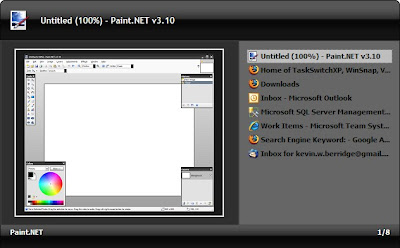
Here's my current setup: Launchy for launching programs and Task Switch XP for switching between running programs.

Launchy:


Task Switch XP:


Launchy runs in the background and is called forward with a configurable keyboard shortcut. I bind mine to alt + q. To use it you just type the name of whatever program you want to run. If that program is buried somewhere in your start menu, launchy will find it. The best part about launchy is that it learns. So if you have 4 programs that start with the letter "f," the first time you type f you'll see all 4 programs in the drop down. If you go ahead and type more letters so that it narrows the selection, "fire", it will select firefox and you can hit enter to launch the program. Next time you type "f", firefox will be the default suggestion.

Mine has trained itself so that this is all I need to type now:
f -> firefox
th -> thunderbird
v -> visual studio
wo -> microsoft word
ie -> internet explorer
sq -> sql management studio
gv -> gvim
cmd -> command line
not -> notepad
tom -> tomboy

The best part of that is that you're not memorizing some weird keyboard shortcut, you're just typing the name of the program you want, and boom, it figures out what you mean before you've even finished typing the full name.

Task Switch XP binds itself to alt + tab by default. It displays your running programs in a vertical list (must nicer than the horizontal list of the task bar) and includes screenshots of each program (much like tweak UI). However, where Task Switch XP sets itself apart is its "sticky" mode (in the configuration utility go to Hotkeys and check "Enable Alt-Tab 'sticky' mode"). With this turned on the window wont close when you release the "alt" key. This means you can call the window forward with alt + tab, then use the arrow keys, or the up/down keys, or the mouse, or the scroll wheel to select the program you want. I even have a button on my mouse configured to bring the dialog forward so I can switch windows without even using the keyboard. This is great because this dialog can support many more open windows before it starts to become cluttered than the Task Bar can.

So Launchy replaces the start menu and Task Switch XP replaces the task bar... As such, I've now configured my task bar to auto-hide.

The only thing I don't have here is the ability to type the name of a currently running program in Task Switch XP and have it filter down the list for me. I'd love to be able to do: "alt+tab fire" and have only firefox windows in the list, but Task Switch XP doesn't have this feature. I have written a program that will do this, but I haven't finished making it pretty yet. Alternatively, I may pull down the Task Switch XP source code and see if I could add the feature I want to it.

Do you use any interesting application management utilities?

Monday, November 5, 2007

Programming meets Editing

Editing text is a significant part of programming. Sure, you spend a lot of time thinking, and a lot of time scribbling on paper and white boards. But you do a ton of editing as well. The only way you can get out of editing is by getting out of programming.

It is interesting that, though editing is such a large part of programming, it is relatively ignored. In my Tools of the Trade: Keyboard post I pointed out that having a comfortable keyboard seems like it should be important given how much typing a programmer does. Along those same lines, it seems like having a good editor should be just as important, if not more so.

I think there are two kinds of programmers, those who have a favorite editor, and those who have never bothered to think about it. Most of the best programmers I know have spent a fair amount of time experimenting with different editors. As usual, wasting time messing with editors doesn't make you a good programmer, and I've known some extremely good programmers who never thought twice about it. On the other hand, generally the people who take the time to think about things like text editors are also the people who think about things like writing good code. I even think that would be a good interview question, "Do you have a favorite text editor?" You could learn a surprising amount about a person's background and actual coding experience through that question.

My favorite editor is Vim, gVim actually. I started editing in the Quick C DOS editor. Then later I used the Zeus editor. Then I stumbled on Vim. And of course, Visual Studio. I had friends in school who used UltraEdit, and recently I've read a lot of hype around Text Mate and the windows clone, E Text Editor. I have never personally used Emacs. I took some time to read about it not long ago, but I've never gone so far as to install it and spend time with it. I tried jEdit for a short period of time, but gave up on it because it took too long to start up.

In the search for an editor I find myself trying to figure out exactly what it is I'm looking for. What makes a good text editor. I think these factors are part of it:
  • Expressivity
    How much can I say and how well can I say it? Ultimately I want to be able to express at a high level what I want to have happen to the text.
  • Composability
    Are there a series of flexible commands which can be combined to perform more complicated operations?
  • Psychic ability
    Does the editor know what I'm doing and help me do it by abstracting out the tedious details? For example, Intellisense, snippets, and auto word completion.
  • Comfort
    Can I type commands easily, or am I performing acrobatic arts with my fingers on the keyboard?
  • Speed
    Is it faster than editing in Notepad?
  • Keeps me oriented
    Keeps me from getting lost in my files and directories
Interestingly these really divide into two categories, you have the strictly text manipulation issues such as speed, comfort, and expressivity. Then you have the more "management" and domain specific issues such as psychic ability and keeping you oriented. Vim is very good at the text manipulation parts, but weak in the management parts. Visual Studio on the other hand is very strong in the management parts.

Visual Studio with Intellisense and re-sharper's background compilation really is wonderful. Add the solution explorer to that and life is pretty good. I wouldn't use an editor that didn't have those features knowing that they exist in Visual Studio. Thus at work I use Visual Studio and not gVim.

Because of this I think I'm going to spring for a ViEmu license. I've used it for the trial period twice now, once on my old computer, once on my new computer. Each time I love having it, but its pricey so I haven't committed yet.

What editor do you use? What editor do you wish you could use?

Sunday, October 28, 2007

Tools of the Trade: Keyboard

As a programmer you spend at least 8 hours a day in front of a keyboard doing a lot of typing. Typing code, emails, design documents, blog posts… That’s a lot of key strokes. So it seems logical that having a good keyboard would be important.

About 6 years ago I shopped around for and bought my first “non-included with the computer keyboard”, a Logitech Cordless Freedom Pro. I still have and use that keyboard at home. However, at work I use the keyboard that came with my computer, a Dell keyboard. Now I’m wondering, since it’s been about 6 years since I last shopped around for a keyboard, if I should take another look.

Of course, the problem is deciding what defines a good keyboard. And also taking the time to actually go select one for yourself instead of settling for whatever came with your computer.

First feature: Ergonomic Design. The options here seem to be classic, split, curve, wave, and crazy (and crazier). Some people swear by the split design while other people either find it annoying or too hard to use. Personally I think I like it, but I’ve never been able to conclusively determine if it really made that much of a difference.

Second feature: Tactile Feel. My dad learned how to type on a type writer, so he prefers a touch that has some real resistance and some pretty long travel distance. He uses an Avant Stellar. However, most keyboards these days are soft and quiet by comparison. My favorite keyboard in terms of tactile feel is the keyboard on my IBMLenovo T60p. It has a very satisfying feel, not too light and not mushy. On the other hand, it’s light enough that I feel I can still "fly over the keys." And the last big point is that it’s quiet. I’m a pretty heavy typist so having a quiet keyboard is important so I don’t annoy everyone around me too much…

Third feature: Accessible Keys. Programmers use the home, end, delete, page up, and page down keys a lot, so it’s important that they’re easy to use. This can actually be kind of hard to find. I’ve seen keyboards where you have to press and hold a function key to use Home and End! On other keyboards that cluster of keys can be “mangled.” My Logitech Cordless Freedom Pro is mangled. I was able to get used it to pretty quickly, but it is definitely a less than ideal arrangement. Another really important key is the control key. The Avant Stellar keyboard swaps the Control key and the Caps lock key by default. I’m a huge fan of this arrangement, so much so that I modified my Windows registry to swap the keys for me on a regular keyboard. I’ll talk more about why I like this arrangement so much in a later post.

Standard Layout
Standard
Micosoft Mangled Layout
Microsoft Mangled
Logitech Mangled Layout
Microsoft Mangled

Fourth feature: Cordless. In college I was very happy I had a cordless keyboard. I would carry it over to my bed with me when I was studying to control Winamp or I’d put it in my lap while I was writing a paper. However, at work, I’ve never felt the need to move my keyboard at all.

Taking all these factors into account I’ve limited my options to the following keyboards:
- My Dell keyboard
- My Logitech Cordless Freedom Pro
- Microsoft’s Ergonomic Desktop 7000
- Logitech’s Cordless Desktop Comfort Laser
- Logitech’s Cordless Desktop Wave

The Dell has very nice tactile feel, not quite as nice as the Lenovo T60p’s keyboard, but I like it. Not only that, but if you watch the credits at the end of this demo of Fogcreek’s Fogbugz you’ll see that the majority of the developer’s pictured with keyboards are using the Dell… interesting.

When it comes to my old Logitech, I’ve simply always been happy with it. I’m completely unsure if the new Desktop Comfort version is any different other than the color and the wrist rest.

Microsoft’s keyboard looks great. It’s non-mangled and split. I have to try to find this one at the store to see how I like its feel.

The Wave is completely different if nothing else. I haven’t had a chance to actually type on it, so I really can’t say anything affirmative about it.

The last question to be answered is, do any of these features really matter? What keyboards do you use? Do you think the ergonomic designs really make a difference? Are they really more comfortable to type on?