Monday, November 26, 2007

Windows PowerShell

If you haven't heard of PowerShell, its a windows command line shell which uses .NET objects for everything, and I'm a fan.

For example, in cmd or bash or whatever, when you type dir or ls you get a text display of a directory's contents. The command outputs formated text. In PowerShell if you type dir you get System.IO.DirectoryInfo and System.IO.FileInfo objects. That's right .NET objects. By default, those types get displayed to the screen in a table format. Wanna change how the output is formated? Pipe it to one of the format commands: dir | format-wide

There are three incredibly cool things here:
  • The command outputs .NET objects
  • The display is independent of the command
  • The pipe command inputs .NET objects from one command to another
This is leaps and bounds better than any other command line shell I've ever used. You don't have to do a bunch of text manipulation to get at the information you want, just call the property. Or call a method. If it's .NET you can do it. And that means you can use your own .NET objects from the command line too. Also, you don't have to learn the formating behavior of many different commands. They're all consistent because they all output .NET objects which are formated with the three format-* commands.

If you've spent much time with a command line you should be starting to see how powerful this is. Here's an actual example. I needed to find out what file extensions people were putting into the document management application here at work. My first thought was to write a Ruby script that would iterate through all the files under a given directory (including subdirectories) and add the extension to an array (if it wasn't already added), then display the array to the command line. Pretty simple script.

Then I thought, I bet I could use PowerShell do this.
dir -recurse | select-object extension -unique

select-object is a command that pulls out a given property from an object. dir | select-object extension will show you the extension for every file in the current directory. Adding the -unique flag will remove duplicate extensions, showing you each extension exactly once.

I wont turn this into a PowerShell tutorial, for that you can refer to Scott Hanselman on PowerShell or just download it and read the documentation it comes with, which is actually quite good. Then start diving into the help, which is also quite good.

Tuesday, November 20, 2007

Personification in Software Design

When you're in a design meeting and people are throwing ideas around it's easy to get confused. People have this funny habit of not fully specifying their subjects. For example, "It wont store versions." What is "it"? The website? The application?

This really does happen all the time, it doesn't matter who you're talking to. Its really hard to avoid. When you're the one talking, you have a mental picture in your head. You're just trying to convert that to words so other people will see it too. But the people you're talking to don't have the same mental picture, so "it" could mean something completely different to them.

You're really trying to shape their mental picture to match yours while continuously updating yours to reflect theirs, so you have to be very specific until you can settle on some common terminology to represent that picture.

I like to use Personification to make this go smoother.
the attribution of a personal nature or character to inanimate objects or abstract notions, esp. as a rhetorical figure

I like to take this one step further and make the people I'm talking to represent the various components of the system. Person A is the database, person B is the website, person C is the application, and I'm the Document Management system. I've found that this works really well. Now I can say "You wont store versions, but I will" instead of "The website wont store versions, but the Document Management system in the application will."

Not only does this make the sentence shorter but it makes it easier for our mental models to jive and its funny. "Maybe you wouldn't have performance problems if you weren't written in Javascript!" See?

Monday, November 19, 2007

Keyboard follow-up


In Tools of the Trade: Keyboard I talked about the importance of keyboards as well as some of the models I was looking into.

Shortly after, I ventured out into the wild world of consumerism where I visited Micro Center, Circuit City, and Best Buy trying out the various keyboards. I decided to start with the Microsoft Natural Ergonomic Keyboard 4000. Turns out, that's where I'm going to end too. This is a fantastic keyboard.

It has one flaw: the space bar. If you push the space bar near the top, it gets kind of stuck. It's also the only key that's loud and "clack-y." I was able to get used to it, but it is less than ideal.

I was willing to get used to it because this keyboard has a lot going for it. Its most distinguishing feature is that it is raised from the back and slants down away from you. This is in contrast to most models which have feet in the back causing them to slant down toward you. Having it slant away is actually a lot more comfortable. I find that I rest the back of my hands on the wrist pad and allow my fingers to dangle down onto the keys. This seems to keep some of the stress off my wrists.


I also love the touch and spacing of the keys. They require more pressure and travel distance than some keyboards today, but not enough to make it annoying. Its a good balance.

I bought it from Micro Center. They sold me an OEM model that came in a simple brown unmarked box for half what Best Buy and Circuit City had it for.

Thursday, November 15, 2007

Do It And Report Back

Object Oriented programming is simultaneously easy and hard. It's easy because when done right things have a way of just falling into place. It's hard because it can be difficult to know if you're doing it right until things don't fall into place...

This is a pattern I run into all the time: I want to write a class which will perform some routine. The routine will consist of many steps which have to follow a certain work flow. By putting all this behind a method call I can abstract the details of the work flow and how the steps are done. However, after all is said and done, I need to know what happened. When the method is simple this can often just be a single return value, GetString() returns a string. If it returns null, there was no string to get. But when your method has many steps to perform this can get more complicated. It may need to return different information depending on what happened. I need the method to report back more than just a single value, I need a status report.

Let's look at an example. Suppose you're given a file path and you want to "scrub" it. Pretend you want to make sure the file type is not on some list of "excluded" file types. Then, if it's a shortcut you want to resolve to the target path. If it's a folder you want to expand the folder into all its files. There is some non-trivial work to be done here and it could be used in multiple locations, so it would be nice to abstract the whole process into a single call.

If we do this it could report back with:
  • File okay (file path)
  • File excluded (file path, file type)
  • Shortcut resolved (shortcut path, target path)
  • Folder expanded (list of file paths, list of excluded files)
Here is how I've been coding this sort of thing (in C#):
public enum ScrubResultType
{
FileOkay, FileExcluded, ShortcutResolved, FolderExpanded
}

public abstract class ScrubResult
{
public ScrubResultType Type
{
get
{
if ( this is ScrubFileOkay )
return ScrubResultType.FileOkay;
else if ( this is ScrubFileExcluded )
return ScrubResultType.FileExcluded;
else if ( this is ScrubShortcutResolved )
return ScrubResultType.ShortcutResolved;
...
}
}

public abstract bool IsError { get; }
}

public class ScrubFileOkay : ScrubResult
{
public string FilePath;
public override bool IsError { get { return false; } }
}

public class ScrubFileExcluded : ScrubResult
{
public string FilePath;
public string FileType;
public override bool IsError { get { return true; } }
}

public class ScrubShortcutResolved : ScrubResult
{
public string ShortcutPath;
public string TargetPath;
public override bool IsError { get { return false; } }
}

public class ScrubFolderExpanded : ScrubResult
{
public string[] ExpandedPaths;
public string[] ExcludedFiles;
public string FolderPath;
public override bool IsError { get { return false; } }
}


I've defined an enumeration which contains all the possible "return types." Then because each return type might need to carry back different information I've used polymorphism to create a class for each possible return type. With a system like this in place I can write code as follows:

ScrubResult sr = FileScrubber.Scrub( "..." );
if ( sr.IsError )
{
if ( sr.Type == ScrubResultType.FileExcluded )
{
ScrubFileExcluded sfe = (ScrubFileExcluded)sr;
MessageBox.Show(
String.Format( "File {0} of type {1} is excluded",
sfe.FilePath, sfe.FileType ) );
}
}
else
{
// handle result based on type
}


This is an actual example of something I was seriously considering doing. I ended up deciding that the User implications of such a situation were scary enough to not warrant adding this. At least not for now.

When the return types don't have different information to carry back then the different classes aren't required and a single class with a "Type" property that returns an enumeration value is good enough. I have used the simpler version in code.

I like this pattern, but I've never really seen it anywhere. Have you seen it? Do you like it? Have you solved the same problem in a different way?

Wednesday, November 14, 2007

Happy Viming

In Programming Meets Editing I mentioned that my favorite editor is gVim, and that I was considering buying ViEmu so I could use the Vim input model inside Visual Studio. Today I finally got myself in gear and bought ViEmu and installed it at work.

ViEmu shoutout: Its impressive. It can't be easy to make Visual Studio play well with the Vim input model, but ViEmu manages it flawlessly. It even has a pretty smart method of managing Visual Studio's keybindings. If you want to go in and out of "ViEmu mode" it will disable and enable conflicting keybindings for you.

If you've ever been interested in learning Vim, the ViEmu developer Jon has created some really nice "graphical cheat sheets" that make learning Vim quite a bit easier. He has also written some good articles on why Vim is so nice: "Why, oh WHY..." and "The Vi input model". Those articles will sum it up better than I can, so I recommend you check them out if you're at all interested.

But that's not going to stop me from throwing in my own 2 cents. What makes Vim great?
  • It is comfortable to use
  • It lets you say what you want to do
Its comfortable because your fingers hardly ever have to leave the home row. Just the fact that you can move the cursor around with out moving your hand over to the arrow keys becomes really nice. I'm serious! It seems like such a minor thing, but after you've used it that way for awhile, going back will annoy you. Its like when you have a badly designed UI where you have to type in a text box, then move the mouse to select the next box, then type more, then move the mouse, then type more, etc.

Another example is the "t" and "f" keys which are like mini searches. "t" means to and "f" means find. Type "fa" and it will move your cursor to the next occurrence of the letter a on the current line. "ta" will move your cursor to right before the next occurrence. "T" and "F" go backwards. Again this is nice because it replaces a string of keyboard actions that might look like "ctl+right,ctl+right,right,right,right" Not only is that simply more keystrokes, it also requires you to move your hands around and perform some control key acrobatics.

Both of these examples demonstrate how Vim is comfortable. The second also demonstrates how it lets me say what I mean. Instead of using a combination of meaningless movement keys to get to the letter a, I said "go to a." At first blush this doesn't seem like it would matter, but as the Vim commands become second nature you can start talking to your editor at a much higher level without thinking about it.

It lets you stay focused on what you're trying to do to the text and not how to do it.

Its important to note that these are just the simplest examples I could think of. Vim has A LOT more to offer. Its also important to answer this question: will it make you more productive? Maybe, I don't know, its hard to say. Does it matter? If it makes you more comfortable and less irritated (ctl+right,ctl+right,ctl+right,ctl+right,ctl+right...), isn't that good enough? After all, I'm going to guess you spend a lot of time typing into that editor of yours.

Finally, if you're interested in giving Vim a shot I would certainly encourage it. It does have a pretty steep learning curve, but the cool thing is you can still do all the "notepad" style editing things you're used to. So you can learn it at whatever pace you want to, one feature at a time. If you're in Visual Studio, ViEmu has a 30 day trial. If you're in Eclipse, there is a Vi plugin. And if you're just editing text there's always gVim.

Monday, November 12, 2007

To Estimate or Not To Estimate

I have recently been spending a lot of time with two different "project management" applications: FogBugz and Team Foundation Server. FogBugz originally attracted my attention because I read Joel Spolsky's blog, Joel on Software, and he's the CEO of Fog Creek Software which makes FogBugz. TFS attracted my attention because it includes a new Source Control system which is a-w-a-y better than Visual Source Safe. I have been evaluating these products and trying to figure out which I'd rather use, its a harder task than it sounds.

The new version of FogBugz, 6.0, mainly consists of Evidence Based Scheduling. I have to be totally honest and say that EBS is not only very cool but makes total sense and I believe it would totally work. However it requires two things: 1) time tracking and 2) work item estimates.

Joel Spolsky recommends keeping your estimates under 16 hours, anything longer than that doesn't stand a chance of being accurate. That means you need a lot of very detailed tasks entered in the system (ex: develop function foo). Once you have estimates at this level you can start to get good predictions of when you'll ship AND you can start to pick and choose what tasks you want to do based on how much time you have left.

TFS doesn't really have any scheduling. It has Remaining Work and Completed Work fields (but only on the Task work item type, not on the Bug work item type...), but no reporting, no nice views, and no nice way to enter time (you have to subtract from the remaining work field manually when you add Completed Work...). The TFS developers seem unconvinced that estimating work at the level Joel recommends is at all worth while. Witness these articles on the Teams WIT Tools blog.

Personally I think estimating how long a task will take is a great idea. I think creating a list of tasks at that detailed level would not only help a developer think through what they're going to do before they dive into it but also help them get an idea of "where they're at" with all their work. I think it would make managing work loads a lot easier too. Not to mention the fact that the ship date estimates would make it possible for you to determine when your initial "blind" estimates were wrong or when scope creep is starting to get the best of you.

My question for all of you is, what do you do at your work? It doesn't even have to be programming work. Do you estimate work? At the detailed task level, or at a more abstract level? Is it helpful? And if you don't estimate work, do you wish you did?

UPDATE: I've posted a follow up post, Managing Projects

Wednesday, November 7, 2007

Use that computer!

If you're like me, you don't like Windows XP's start menu. You might like the pinning and the recently used programs section, but you despise the popout hierarchical menus. You also dislike the desktop, and find it more or less useless, much like Coding Horror says. I also wouldn't be surprised to hear that you really don't like the task bar, and find it so cluttered that you obsessively open and close all your windows all day long so that you never have more than 3 or 4 open at the same time.

This is where you may start to be a little less like me. I have searched for alternative UIs for launching programs and managing currently open programs for years. The list of things I have tried includes: Ashton Shell Replacement (win), KDE (linux), GNOME (linux), Enlightenment (linux), IceWM (linux), Xfce (linux), Fluxbox (linux), Symphony OS (linux), Rocket dock (win), Top Desk (win). At some point or another, for some reason or another, I gave up on all of those.

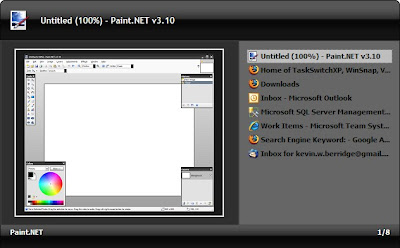
Here's my current setup: Launchy for launching programs and Task Switch XP for switching between running programs.

Launchy:


Task Switch XP:


Launchy runs in the background and is called forward with a configurable keyboard shortcut. I bind mine to alt + q. To use it you just type the name of whatever program you want to run. If that program is buried somewhere in your start menu, launchy will find it. The best part about launchy is that it learns. So if you have 4 programs that start with the letter "f," the first time you type f you'll see all 4 programs in the drop down. If you go ahead and type more letters so that it narrows the selection, "fire", it will select firefox and you can hit enter to launch the program. Next time you type "f", firefox will be the default suggestion.

Mine has trained itself so that this is all I need to type now:
f -> firefox
th -> thunderbird
v -> visual studio
wo -> microsoft word
ie -> internet explorer
sq -> sql management studio
gv -> gvim
cmd -> command line
not -> notepad
tom -> tomboy

The best part of that is that you're not memorizing some weird keyboard shortcut, you're just typing the name of the program you want, and boom, it figures out what you mean before you've even finished typing the full name.

Task Switch XP binds itself to alt + tab by default. It displays your running programs in a vertical list (must nicer than the horizontal list of the task bar) and includes screenshots of each program (much like tweak UI). However, where Task Switch XP sets itself apart is its "sticky" mode (in the configuration utility go to Hotkeys and check "Enable Alt-Tab 'sticky' mode"). With this turned on the window wont close when you release the "alt" key. This means you can call the window forward with alt + tab, then use the arrow keys, or the up/down keys, or the mouse, or the scroll wheel to select the program you want. I even have a button on my mouse configured to bring the dialog forward so I can switch windows without even using the keyboard. This is great because this dialog can support many more open windows before it starts to become cluttered than the Task Bar can.

So Launchy replaces the start menu and Task Switch XP replaces the task bar... As such, I've now configured my task bar to auto-hide.

The only thing I don't have here is the ability to type the name of a currently running program in Task Switch XP and have it filter down the list for me. I'd love to be able to do: "alt+tab fire" and have only firefox windows in the list, but Task Switch XP doesn't have this feature. I have written a program that will do this, but I haven't finished making it pretty yet. Alternatively, I may pull down the Task Switch XP source code and see if I could add the feature I want to it.

Do you use any interesting application management utilities?

Monday, November 5, 2007

Programming meets Editing

Editing text is a significant part of programming. Sure, you spend a lot of time thinking, and a lot of time scribbling on paper and white boards. But you do a ton of editing as well. The only way you can get out of editing is by getting out of programming.

It is interesting that, though editing is such a large part of programming, it is relatively ignored. In my Tools of the Trade: Keyboard post I pointed out that having a comfortable keyboard seems like it should be important given how much typing a programmer does. Along those same lines, it seems like having a good editor should be just as important, if not more so.

I think there are two kinds of programmers, those who have a favorite editor, and those who have never bothered to think about it. Most of the best programmers I know have spent a fair amount of time experimenting with different editors. As usual, wasting time messing with editors doesn't make you a good programmer, and I've known some extremely good programmers who never thought twice about it. On the other hand, generally the people who take the time to think about things like text editors are also the people who think about things like writing good code. I even think that would be a good interview question, "Do you have a favorite text editor?" You could learn a surprising amount about a person's background and actual coding experience through that question.

My favorite editor is Vim, gVim actually. I started editing in the Quick C DOS editor. Then later I used the Zeus editor. Then I stumbled on Vim. And of course, Visual Studio. I had friends in school who used UltraEdit, and recently I've read a lot of hype around Text Mate and the windows clone, E Text Editor. I have never personally used Emacs. I took some time to read about it not long ago, but I've never gone so far as to install it and spend time with it. I tried jEdit for a short period of time, but gave up on it because it took too long to start up.

In the search for an editor I find myself trying to figure out exactly what it is I'm looking for. What makes a good text editor. I think these factors are part of it:
  • Expressivity
    How much can I say and how well can I say it? Ultimately I want to be able to express at a high level what I want to have happen to the text.
  • Composability
    Are there a series of flexible commands which can be combined to perform more complicated operations?
  • Psychic ability
    Does the editor know what I'm doing and help me do it by abstracting out the tedious details? For example, Intellisense, snippets, and auto word completion.
  • Comfort
    Can I type commands easily, or am I performing acrobatic arts with my fingers on the keyboard?
  • Speed
    Is it faster than editing in Notepad?
  • Keeps me oriented
    Keeps me from getting lost in my files and directories
Interestingly these really divide into two categories, you have the strictly text manipulation issues such as speed, comfort, and expressivity. Then you have the more "management" and domain specific issues such as psychic ability and keeping you oriented. Vim is very good at the text manipulation parts, but weak in the management parts. Visual Studio on the other hand is very strong in the management parts.

Visual Studio with Intellisense and re-sharper's background compilation really is wonderful. Add the solution explorer to that and life is pretty good. I wouldn't use an editor that didn't have those features knowing that they exist in Visual Studio. Thus at work I use Visual Studio and not gVim.

Because of this I think I'm going to spring for a ViEmu license. I've used it for the trial period twice now, once on my old computer, once on my new computer. Each time I love having it, but its pricey so I haven't committed yet.

What editor do you use? What editor do you wish you could use?

Friday, November 2, 2007

The Fear of Doing

For a long time I suffered from the relatively common ailment of "The Fear of Doing." The symptoms can vary dramatically and change over time, but the root cause is the same.

I would come up with an idea, maybe for a piece of software, and I would design it and all its abstract elements. I would get right up to the point where I needed to write some code, or research a technology, or look up an api. Then I would stop.

Or, other times, I would be annoyed by something. Maybe something about Windows, like how hard it is to switch between windows, or how hard it is to start a program. Or it could be something in Visual Studio, like how the shortcut keys aren't setup right, or how there's no good way to find a file in a solution. In these cases I would complain about how annoying it all is, and grudgingly go back to dealing with it.

Or, on a few other occasions, I would be interested in something. Like what mechanisms .NET has for parsing XML. Or how the Ruby language differs from the C based languages. Or if one keyboard might be more comfortable to type on than another. When my interest would peak in these cases I would think to myself, "That would be interesting to learn," and then I would go watch TV.

Or, in exceptional circumstances, I might even wonder about things that don't have anything to do with computers or programming! It does happen every now and then. But I'd usually end up leaving my activities at wonderment.

In all of these cases I was willing to think about, or be interested in, or wonder about things right up until the point when I would actually be required to go learn something. Actually, these are bad examples because these are, in reality, examples of things I did actually go learn something about. But not surprisingly, all the stuff I may have thought about but not bothered to learn about... I can't remember anymore, so I couldn't use them as examples.

I should mention early on that thinking about stuff and not "going and learning" isn't necessarily bad. In fact, its quite a bit better than thinking about nothing. Especially because you may very well learn stuff in the process of thinking. Truth be told, some of the best learning occurs when you learn from yourself rather then by "going and learning." However, there are a few things that simply can't be learned that way. And there are many other things that wont be learned that way efficiently.

That being said, there is only so much you can learn by just abstractly thinking about things. Eventually you just have to do something. However, it can be hard to convince yourself that its worth the time it will take to do something. You can always come up with reasons why you shouldn't do something: you might fail, you might get half way through and lose interest, you might start only to find out someone else beat you to the punch and has already done it, it might turn out to be a bad idea, you might finish it and then never use it... The list goes on.

I call this "The Fear of Doing." For me, I credit a project I called BoxVue as one of the first times I got over this. BoxVue was a Konfabulator, I mean Yahoo Widgets, widget that allowed you to organize programs, files, directories, shortcuts, or whatever into groups. Then you could click on the items in the groups, or use the search capability to launch the item with the keyboard. Basically, it was my version of the Windows start menu without the hierarchical pop up menus and with a convenient search. I wrote it because I'd never liked the start menu, never found a nice replacement app, and I was very interested in Konfabulator's programming model (which is a combination of declarative XML and Javascript). I spent quite a while in Photoshop creating the graphics and gVim looking at other widget's code and writing Javascript. I ended up with a product I was quite happy with and I used it for about a month. Then I discovered the Gnome Main Menu in SLED 10 and learned that XP's "pin to start menu" feature was actually pretty nice (I had always turned off the XP start menu and used the old style one) and I completely stopped using BoxVue.

This was one of the first times I'd actually taken the time to learn a new technology and develop a full application with it. And it resulted in failure, more or less. You would think this would only have reinforced my "Fear of Doing," but instead it set me straight. Although I no longer use BoxVue, I learned a ton of stuff from writing it that I do use today. First of all, I learned Javascript is a real language, and an awesome one at that, and I now understand what a "prototype" language is. I also got some decent exposure to a declarative UI style of programming. Shortly after I finished BoxVue, Microsoft starting talking about WPF and Xaml, which we have been looking into at work and which is a declarative UI style of programming, so that was a nice leg up.

Ever since then, every time I've taken the time to do something, its always benefited me later in more ways than I could have predicted before I started. Always.

So what I learned is, even if the "project" fails, the time I invest is totally worth it because it helps me get smarter and get more things done.

Sunday, October 28, 2007

Tools of the Trade: Keyboard

As a programmer you spend at least 8 hours a day in front of a keyboard doing a lot of typing. Typing code, emails, design documents, blog posts… That’s a lot of key strokes. So it seems logical that having a good keyboard would be important.

About 6 years ago I shopped around for and bought my first “non-included with the computer keyboard”, a Logitech Cordless Freedom Pro. I still have and use that keyboard at home. However, at work I use the keyboard that came with my computer, a Dell keyboard. Now I’m wondering, since it’s been about 6 years since I last shopped around for a keyboard, if I should take another look.

Of course, the problem is deciding what defines a good keyboard. And also taking the time to actually go select one for yourself instead of settling for whatever came with your computer.

First feature: Ergonomic Design. The options here seem to be classic, split, curve, wave, and crazy (and crazier). Some people swear by the split design while other people either find it annoying or too hard to use. Personally I think I like it, but I’ve never been able to conclusively determine if it really made that much of a difference.

Second feature: Tactile Feel. My dad learned how to type on a type writer, so he prefers a touch that has some real resistance and some pretty long travel distance. He uses an Avant Stellar. However, most keyboards these days are soft and quiet by comparison. My favorite keyboard in terms of tactile feel is the keyboard on my IBMLenovo T60p. It has a very satisfying feel, not too light and not mushy. On the other hand, it’s light enough that I feel I can still "fly over the keys." And the last big point is that it’s quiet. I’m a pretty heavy typist so having a quiet keyboard is important so I don’t annoy everyone around me too much…

Third feature: Accessible Keys. Programmers use the home, end, delete, page up, and page down keys a lot, so it’s important that they’re easy to use. This can actually be kind of hard to find. I’ve seen keyboards where you have to press and hold a function key to use Home and End! On other keyboards that cluster of keys can be “mangled.” My Logitech Cordless Freedom Pro is mangled. I was able to get used it to pretty quickly, but it is definitely a less than ideal arrangement. Another really important key is the control key. The Avant Stellar keyboard swaps the Control key and the Caps lock key by default. I’m a huge fan of this arrangement, so much so that I modified my Windows registry to swap the keys for me on a regular keyboard. I’ll talk more about why I like this arrangement so much in a later post.

Standard Layout
Standard
Micosoft Mangled Layout
Microsoft Mangled
Logitech Mangled Layout
Microsoft Mangled

Fourth feature: Cordless. In college I was very happy I had a cordless keyboard. I would carry it over to my bed with me when I was studying to control Winamp or I’d put it in my lap while I was writing a paper. However, at work, I’ve never felt the need to move my keyboard at all.

Taking all these factors into account I’ve limited my options to the following keyboards:
- My Dell keyboard
- My Logitech Cordless Freedom Pro
- Microsoft’s Ergonomic Desktop 7000
- Logitech’s Cordless Desktop Comfort Laser
- Logitech’s Cordless Desktop Wave

The Dell has very nice tactile feel, not quite as nice as the Lenovo T60p’s keyboard, but I like it. Not only that, but if you watch the credits at the end of this demo of Fogcreek’s Fogbugz you’ll see that the majority of the developer’s pictured with keyboards are using the Dell… interesting.

When it comes to my old Logitech, I’ve simply always been happy with it. I’m completely unsure if the new Desktop Comfort version is any different other than the color and the wrist rest.

Microsoft’s keyboard looks great. It’s non-mangled and split. I have to try to find this one at the store to see how I like its feel.

The Wave is completely different if nothing else. I haven’t had a chance to actually type on it, so I really can’t say anything affirmative about it.

The last question to be answered is, do any of these features really matter? What keyboards do you use? Do you think the ergonomic designs really make a difference? Are they really more comfortable to type on?

Wednesday, October 10, 2007

Where is UserControl.Text?

Creating UserControls is a very simple process from a high level. But as usual, the devil is in the details. Recently I was going through many of our controls here at work when I noticed that they were all using the “new” keyword to override the BackColor and Text properties. Somehow we’d managed to get by without this causing any problems until now. To correct this I had to override the OnBackColorChanged and OnTextChanged virtual methods.

After this was done I noticed that the Text property was no longer visible in intellisense for any of our UserControls. After looking closer at the object model I learned that UserControl inherits from Control which contains the Text property. So how come I couldn’t see the Text property? You can’t remove properties through inheritance.

It turns out there is a special designer attribute called System.ComponentModel.EditorBrowsableAttribute. This attribute can be placed on a property or method to determine change the visibility of that property or method in the designer. The possible visibility values (EditorBrowsableState) are Never, Advanced, and Always.

UserControl marks the Text property with EditorBrowsable( EditorBrowsableState.Never ).

I have no idea why Microsoft did this. I imagine there is some strange way of thinking which makes it make sense, but I haven’t figured it out yet.

To work around this, I had to override the Text property on a base class that all of our UserControls inherit from. Fortunately we already had a base class, otherwise I would have been forced to create one just so we could use the Text property correctly.

And for the record, yes, the Text property can be overridden. Why was it using the “new” keyword in the first place you ask? I don’t know. I think because whoever wrote the controls just didn’t know it was a virtual property.

Monday, September 10, 2007

string + string

A coworker discovered a strange C# language "feature" today.

Take a look a the following code:
string n1 = null, n2 = null;
string s = n1 + n2;

What's the value of s?

I would have expected it to be null, but its not, its String.Empty.

At first I thought this was a feature to avoid a null reference error, but I was confusing C# and C++. In C++ operator overloads are member methods, so they can't be called if the object is null.

However, in C# operator overloads are static methods, so it doesn't matter if the objects are null:
public class NullOp
{
public static NullOp operator + ( NullOp no1, NullOp no2 )
{ ... }
}


Since that doesn't explain this behavior, I have no idea why they designed C# to work this way. Its very interesting.

Monday, September 3, 2007

How to Handle Control Events?

Object Oriented Programming is awesome. And it is no less awesome when working with User Interfaces. In fact, I find it can be amazingly helpful when you're dealing with a complicated UI that has many interacting components.

I'm going to make a up a really simple UI that has some interacting components so I have an example to work through. Say you have a grid on the left which displays a bunch of records, one per row. When a record is selected it displays the details of that record in a bunch of fields to the right of the grid. This is just your typical master/detail type of view.

One last thing to add. If the user changes one of the details, we want to visually indicate that the record has changed in the grid by adding a '*' at the beginning of the record name.

An OO approach to this might be to make the grid a custom user control and the details pane another custom user control. This allows us to abstract all the logic for managing each component into a separate object. That way its not scattered all over the Form class. I have done this in two different ways and I'm not sure which I prefer yet. For example, with the grid, sometimes I have done this by creating a control that inherits from the grid. Other times I have created a separate class whose constructor requires a grid. And other times I've created a UserControl that wraps the control and exposes the features I need. I really don't know which approach I prefer at this point.

But the title of this post is Handling Control Events, and I haven't talked about events at all yet, so lets get into that. To detect that the user has made a change to the details of a record we're going to have to register a ValueChanged event of some sort on each control in the details pane. We'll do this in the details pane user control. Then when any of those events fire we'll cause our user control to fire its own ValueChanged event. To add the '*' we'll simply have our form hook into the detail pane's ValueChanged event and call a method on our grid control to tell it to mark the selected record changed. Very simple.

But what happens when the user selects a record and we fill in all the detail controls? The value changed event of each control will fire, and our detail pane's ValueChanged event will fire multiple times, and we'll put the '*' on the record's name. But the user didn't actually change the record's details, they just loaded it.

How do we get around this? How do we handle control events? We need a way to tell the difference between the user interacting with the detail controls and us programmatically interacting with the detail controls. I know of three ways to handle this:
  1. Add a "suppress flag" which when true causes the detail pane's ValueChanged event NOT to fire. Set the suppress flag before doing something in code, then unset it when finished.
  2. Remove the events before doing something in code so they don't fire at all, then add them back when finished. This prevents the detail pane's ValueChanged from firing.
  3. Add a CausedBy parameter to the detail pane's ValueChanged event which indicates what caused the change, User or Program. Then the person consuming the event can decide how to deal with it.
Personally, I always go with the first method: suppress flags. This example is trivially simple (and yet I've seen many programmers have problems with it), but when the UIs get more components and more ways to interact these suppress flags can start to get out of control. Unfortunately, I don't know of another way to handle this very common problem.

Do you guys run into these situations?

Tuesday, August 28, 2007

Memory Leaks in ShowDialog

In an earlier post I talked about Memory Leaks in .NET due to events. This time I'm going to talk about memory leaks that may occur in the use of Form.ShowDialog().

I'm talking about a WinForms Form here, so this doesn't apply to WPF or GTK or any other tool kit (which is not to say they don't have the same behavior, just that I don't know).

When you open a Form with Form.Show() it gets disposed automatically when the user closes it or when you programmatically call the Close() method. However, when you open a Form with Form.ShowDialog() it doesn't get disposed when the user closes it, nor when you programmatically close it. It just gets hidden. Presumably this is so you could re-show it if you wanted to. The downside of this is you have to dispose it manually.

You may be thinking that this isn't a big deal because the garbage collector will take care of it for you when the variable goes out of scope. This is not the case. If you don't call the Dispose method that form, and anything referenced by the form, will remain in memory until your program ends.

Because of this, my best practice recommendation is anytime you're opening a Form with ShowDialog, consider doing some like this:
using( SomeDialog sd = new SomeDialog() )
{
sd.ShowDialog();
}

If you can't constrain the scope of your form to just one method then you're stuck remembering to dispose it before you finish with it.

This behavior is, at least to me, somewhat unexpected. However, it is fully documented in MSDN:
When a form is displayed as a modal dialog box, clicking the Close button (the button with an X at the upper-right corner of the form) causes the form to be hidden and the DialogResult property to be set to DialogResult.Cancel. Unlike modeless forms, the Close method is not called by the .NET Framework when the user clicks the close form button of a dialog box or sets the value of the DialogResult property. Instead the form is hidden and can be shown again without creating a new instance of the dialog box. Because a form displayed as a dialog box is not closed, you must call the Dispose method of the form when the form is no longer needed by your application.

Wednesday, August 22, 2007

Posting Code on blogger

I finally found a decent way to post code on this blog. Its not hard, I just didn't know how...

Here's how. Just add the following css class definition in your blog's template:
.code {
color: $textcolor;
white-space: pre;
background: #ebebeb;
overflow: auto;
border: 1px inset;
padding: 4px 4px 4px 4px;
font-size: 85%;
font-family: courier new;
}


Then when you want to post some code, switch to the Edit Html view and wrap the code with a div class like so:
<div class="code">DisplaySampleCode();</div>


The "white-space: pre" part makes it so the browser will display all the spaces you've typed (normally it removes excess spaces). "pre" stands for pre-formatted. This is a reference to the <pre> tag in html.

The "overflow: auto" part tells it to display a scroll bar if the content of the div is too big to fit within the area of the div.

Tuesday, August 14, 2007

Fun With Circles


I recently decided that I wanted to create a "Progress Spinner." That's a stupid name for a control that looks like its spinning around to indicate that something is happening in the background. In other words, its a progress bar without the bar. The picture shows my end result (I was too lazy to try to make an animated gif).

I decided I wanted this because I hate progress bars that just go back and forth endlessly. Progress bars should be reserved for times when you can actually estimate how far along in a process you are as a discrete percentage. When you have no idea how far along you are, then just display a "spinny thingy" (an alternate name).

Progress spinners are pretty popular today. You see them in Micrsoft software like the Reporting Services WinForms viewer, or Apple's iPod, or the new iPhone. They're everywhere.

Anyway, I thought it would be a fun little side project to create one. Mostly because I would have to re-teach myself some trigonometry, all of which I had forgotten.

Here's the details: Display x number of circles (with r radii) in a circle which fills the size of the user control. Use two colors, a base color and an active color, which can be changed by the user. The active color appears to move clockwise around the outer circle. Allow the speed of the rotation to be changed.

The math was the fun part. When I started, I had no idea how to calculate the location of each of the circles (henceforth referred to as markers). It turns out its quite easy though, just use Polar coordinates and convert to Cartesian coordinates.

In case you can't remember, just like I couldn't, Polar is given by the distance r from the center to the point and the angle theta from what would usually be the positive x axis to the point. In my case, r is constant so I only need to calculate theta for each marker. 2 * PI / num markers gives the angle between each marker. So just loop for each marker and increment theta by that amount.

So that was fun and easy. Of course, it couldn't remain that simple... You also have to account for the radius of the markers in r so your markers don't leave the visible space of the control. And you have to convert from Cartesian coordinates to Computer coordinates (cause 0,0 is the top left in a computer, not the center). And finally, the biggest annoyance: account for borders on the WinForms UserControl.

If you have BorderStyle set to anything other than none, all kinds of weird things starts happening. It turns out that if you draw a line from (0,0) to (0, width) ( top-left to top-right) it will be visible. But if you draw a line from (0, height-1) to (width-1, height-1) (bottom-left to bottom-right) it will not be visible. To make that line visible you actually have to use (0, height-3) to (width-3, height-3). The borders take up 2 pixels, even when they're not using them as in BorderStyle.Single. The borders also only steal space at the bottom and right of the control, not the left or top. It makes no sense to me what-so-ever.

Anyway, it was a fun little project. While I was at it, I added the ability to draw the markers as lines instead of circles:

I also added the ability to register a paint event and paint your own markers however you please.

The control also includes the concept of color profiles allowing you to select from green, black, blue, or red so you don't always have to figure out your own colors.

Just for kicks I also added a feature so that as you resize the control, not only does the diameter of the main circle grow, but the diameter of the markers grows proportionally as well.

Finally I got to use a really nice trick with IEnumerable. I created a MarkerPositionManager : IEnumerable class. This allows me to write code like this in the OnPaint method:

foreach( MarkerPosition mp in markerPositionManager )
{
// draw ellipse in mp.BoundingRect
}


I like that because it completely abstracts the logic for positioning the markers from the logic for drawing the markers. I love using this pattern because its very effective and easy to refactor to.

The end result is pretty fun to play with.

Wednesday, August 1, 2007

Is WinForms DataBinding currently in progress?

I've recently been looking into WinForms DataBinding. We have an in house databinding solution that we use, but it is vary narrow in scope, so I wanted to learn how WinForms does it.

I started with an example where I have a very simple user control with 5 or 6 fields (combo boxes, text boxes). I wanted to bind these fields to data from a .NET class which has properties which exactly match the fields I'm displaying. Using WinForms databinding to accomplish this was startlingly easy. But then I hit a snag.

I've registered the ValueChanged event on all my controls (These are in house controls which implement an interface so they all have a ValueChanged. For the most part, all it does is forward the TextChanged and SelectedValueChanged events) and hooked it up to a single event handler. When this event handler fires I enable a "reset" link. Thus if the user changes any of the values, they can click reset to put the values back as they were.

The snag is that when the data binding initially loads the controls, the value changed events fire and I enable my reset link. But when its the data binding that has caused my value changed event to fire, I don't want to enabled the reset link. In other words, I need to know if the data binding caused the value changed or if a user editing the field caused the value changed.

Ideally, I'd like to be able to write something like this:

void Fields_ValueChanged( object sender, EventArgs e )
{
if ( !bindingSource.IsUpdatingControls )
resetLink.Enabled = true;
}


Unfortunately for me, nothing like this seems to exist. And even more infuriating, I can't find anyone else complaining about this on the web...

Now from what I've read I understand that if you're using data binding you're not supposed to depend on the controls. Instead you're supposed to use the object that contains your data. This is for MVC purposes apparently. This means: don't use the control's ValueChanged event. But this doesn't work in my case for 3 reasons: 1) I don't need two way binding here, so my underlying data object shouldn't even get updated. 2) To use two way binding I'd have to change the update mode to OnPropertyChanged instead of OnValidation, which I just don't want to have to do. 3) From an MVC perspective, this is View logic which should remain in the View layer and not be dependent on what update mode the underlying data binding is using.

Am I missing something huge here? Is there any way to do this? Or do I have to abandon WinForms data binding? Seems like such a silly thing to force me to write the binding code manually.

Monday, July 23, 2007

Theory of Software Usability

As software matures software designers are putting more and more thought into "usability" or "user experience." This is clearly a good thing. But I've noticed that this strange concept of usability isn't really that well defined.

There are a few distinct factors that all contribute to how usable a given piece of software is overall. I refer to these as:
  • Ease of Learning - how easy is it for a user to learn to use the software
  • Ease of Use - how easy is it for a user to use the software to achieve their goals
  • Familiarity - how familiar is the user with the software or patterns used by the software
  • Functionality - how many of a user's goals can be accomplished with the software
Of these 4 factors, Familiarity is the only one which changes over time (for a given software release). However, all of these factors depend on a combination of the user and the software. That is, different users will not only have different "values" for Familiarity but for all three as well.

In the case of Ease of Learning this is simply because some people learn faster than others or will take to certain concepts easier than others. Ease of Use will vary because different people may want or need to accomplish their goals in different ways. Functionality will vary for a similar reason, different people may have completely different goals.

So clearly, there is no way to look at a piece of software and assign these 4 factors static values. However I think they are still helpful as a guide to understanding what makes something usable. Its also interesting to consider how these factors relate to each other.

Probably the most important relationship is that between Ease of Learning and Ease of Use. Firstly, they are not the same thing. Take the third generation iPod for example. The iPod is frequently used as an example of an extremely usable interface. Its very simple in that it has only a few UI concepts and a few controlling buttons. One of my main goals when using an iPod is to find a certain artist, album, or song that I want to listen to. To do this I need to navigate through my music collection, reading the names until I find what I'm looking for. The third generation iPod has everything sorted alphabetically which makes scrolling around fairly easy. But wouldn't it be easier if it had a search feature? It didn't. It also didn't scroll the names of songs and albums when you had them selected (it only scrolled while it was playing), which made it very hard to tell if you were looking at the song you wanted. So while the third generation iPod had the functionality I was looking for, it wasn't terribly easy to get there.

Easy to learn, but not as Easy to Use as I'd have liked. These deficiencies have been corrected in later versions of the iPod of course, but it still serves as a great example.

This demonstrates that Ease of Learning and Ease of Use can very easily be in opposition to each other. By making an interface easy to learn you may be crippling how effectively it can be used.

Another interesting point here is that Ease of Learning can only contribute so much to the overall Usability of the software. You can imagine a text editor that is very easy to learn because it only consists of a text box that you can type in. But if the functionality of the text editor is so crippled such that it doesn't support cut and paste, return characters, capital letters, etc... Clearly, this will never be a usable text editor no matter how easy it is to learn.

Also, Ease of Learning becomes less important the more familiar the user becomes with the software. Consider the Vim text editor. This is a very powerful editor which is far more usable to an experienced user than an editor like Notepad. So while Notepad is exceedingly easy to learn, it can't compare to Vim overall. This is because Vim is both easier to use to accomplish certain goals (ex: delete all text to the end of the line) and because it has much more functionality.

So why is so much emphasis placed on Ease of Learning these days when it can clearly only take you so far?

Consider Vim again. Vim is not easy to learn at all. It requires a lot of memorization and completely new UI/control patterns to be learned. In fact a user who knows nothing about it may not even be able to figure out how to type any text into it.

Obviously some kind of balance must be struck. The next logic question then is where do you strike the balance. The only answer (as usual in Computer Science) is it depends.

If your user base contains skilled users with a lot of familiarity, you want the Ease of Use. If your user base is using your software to accomplish very specific goals in a controlled environment where they will be supplied with training, you probably want the Ease of Use. But if your user base is mixed with many different skill levels, many different goals to accomplish, and no structured environment, Ease of Learning is going to be very key.

Not surprisingly, we're right back to where we started with a not very rigidly defined concept of Usability. But at least recognizing these 4 factors as distinct factors can help in the design process as you size up your user base and your goals for the software.

Tuesday, July 17, 2007

Shared Assemblies, Components, and Applications

Here's the situation:
You have a shared assembly which contains a lot of useful utilities called SharedAssembly.dll

You create a customized component that uses SharedAssembly.dll called ComponentA.dll

You create a full application which uses SharedAssembly.dll and ComponentA.dll called App1.exe

In VS2005 you setup your solution to include all the projects: App1, ComponentA, and SharedAssembly. You setup the references as Project references. Now, when you build the solution, VS figures out it needs to build SharedAssembly first, then ComponentA, then App1. The end result is App1 and ComponentA both use the same version of SharedAssembly. This is wonderful.

But what if you wanted to change it so that ComponentA wasn't included as a project in the solution file? Instead you want to release ComponentA as dll files that can simply be referenced by App1. The problem is that you now have two different versions of SharedAssembly.dll. If you set it up this way you'll get a runtime error because the framework detects that the version of SharedAssembly.dll is not what was expected by ComponentA.dll. Is there any way to get a setup like this working?

I want ComponentA to be like its own little mini-application, with its own versions of dlls, completely independent from App1.

My mind is immediately drawn to Java's jar files, but I don't really know how they work.

I've tried a little utility from MS Research called ILMerge which takes a set of dlls and combines them into a single dll. However, this didn't work. An exception was thrown at run time when the second SharedAssembly namespace was encountered.

I also tried installing the dlls in the GAC. However, it turns out you can't reference a dll in the GAC from Visual Studio: "This is because the GAC does not have full support for all design-time pieces of an assembly -- while you have access to the DLL itself, you will not have access to PDB symbols nor XML documentation files." (link)

Any ideas?

Wednesday, May 9, 2007

Blob performance concerns

Maybe someone can help me answer this question. I originally wrote about this on 3/2/2006 but never really found a good answer.

Suppose you are writing a program in C# that uses SQL Server 2005 and you'd like to store some files as Blobs (Binary Large OBjectS) in the database.

This is a very simple thing to do. Take the bytes, send them to SQL Server 2005 where you store them in a varbinary(max) column.

The code for this in C# looks like:

FileStream fs = new FileStream( "file" );
byte[] buff = new byte[fs.Length];
fs.Read( buff, 0, fs.Length );

SqlCommand sc = new SqlCommand(...);
sc.Parameters.Add( ...buff... );


My concern is that this code is going to read the entire file into memory. Then its going to send all that memory to SQL server in one shot. If this is a sufficiently large file I'd expect there to be problems on both the client and the server because of this.

If the client is somewhat lacking for memory, or if the file is really large, then I'd expect this code to cause a lot of disk paging. Possibly even paging out the beginning of the file you just read from disk to make room for the end of the file, just to turn around and page out the end of the file to make room for the beginning so it can send those bytes to SQL. I'm not clear such a thing could ever actually happen, but I do suspect some paging will occur.

What I'd really like to do is specify a stream as the parameter instead of a byte array. That way I could trust the driver was only loading a portion of the full file into a buffer at a time. It seems the JDBC driver supports this, but the SqlClient driver for ADO.NET doesn't.

So my questions are, am I blowing this way out of proportion? Is there a better way to insert a Blob in SQL from C#? Why does no one else on the internet address this concern?

Partly because of this problem, along with some other performance concerns, I ended up storing the files on a shared file server instead of as Blobs in SQL. This allowed to me to handle the transfer myself using the typical buffered approach.